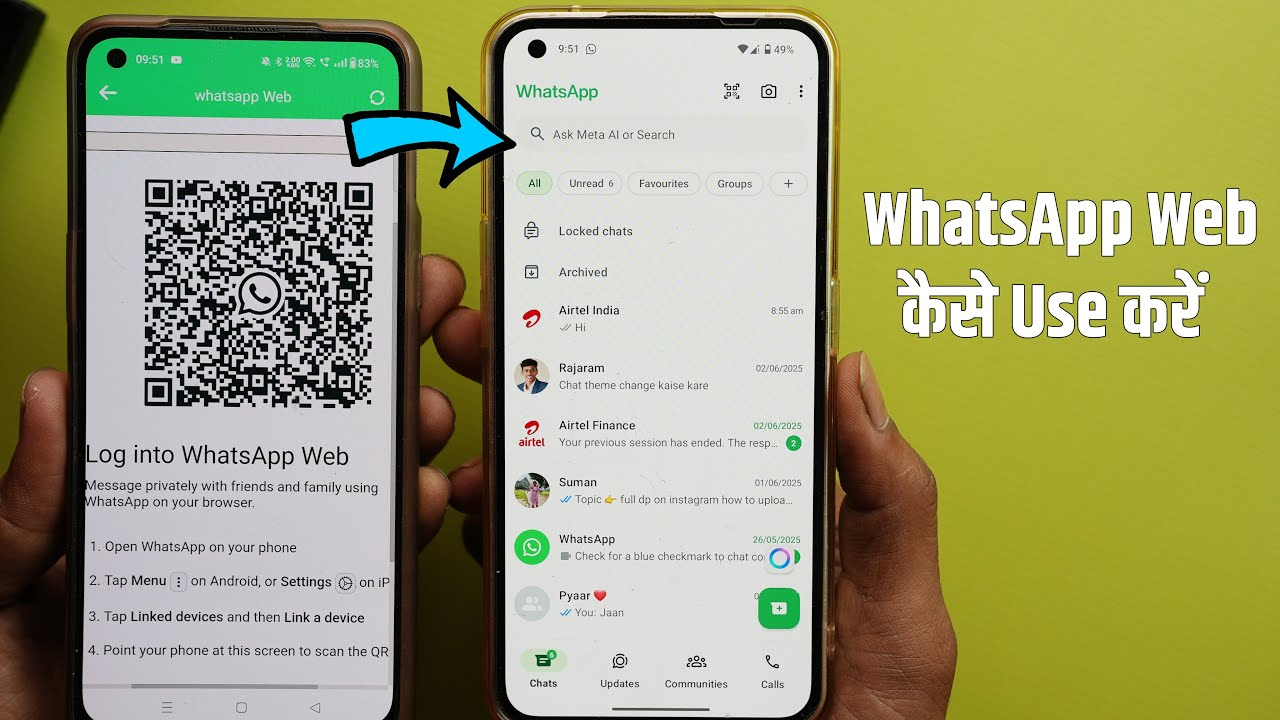
Dual Chat 2 WhatsApp Web Scanner App – Complete Review and How to Use It
Introduction to the Dual Chat 2 WhatsApp Web Scanner App
Hello friends! Welcome to today’s blog. Today, we are going to talk about the Dual Chat 2 WhatsApp Web Scanner application. In this video, I will explain how you can use this application on your mobile phone. I will also explain its complete settings and features step by step.
Friends, I will also discuss whether this application is real or fake and whether it actually works as expected. Can you really use this application to access another WhatsApp account or use WhatsApp Web? We will cover all these details in this video.
So, let’s get started and learn how to use the Dual Chat 2 WhatsApp Web Scanner application.
How to Open the Application
First of all, you need to open the application on your mobile phone. After opening it, wait a few moments for the application to load properly.
Once the application has finished loading, you will see its home page and interface. Take a moment to look at the available options so that you can understand how the application works.
On the home screen, you will find several features, including WhatsApp Web Login, Direct Chat, and Text Repeater. These options are available for different purposes, and I will explain how you can use them.
WhatsApp Web Login Feature
First, let’s discuss the WhatsApp Web Login option. At the top of the application, you will find this feature. Click on it to continue.
After clicking on the WhatsApp Web option, you may see some instructions explaining how to use the feature. Follow the instructions displayed on your screen.
First, click on the Next option at the bottom of the screen. After that, click on the Done option to proceed. Wait a few moments, and the application will display a QR code scanner.
Now, you need to understand how to use this scanner to link your WhatsApp account.
How to Scan the WhatsApp QR Code
Friends, follow these steps carefully to understand how to link your WhatsApp account using the QR code.
Step 1: Open WhatsApp
First, open the official WhatsApp application on the phone where your account is already active.
Step 2: Open the Menu or Settings
If you are using Android, open WhatsApp and tap the three-dot menu in the top-right corner. From the menu, select Linked Devices. Depending on your WhatsApp version, you may need to follow the on-screen instructions to access this option.
Step 3: Select Link a Device
After opening Linked Devices, tap the Link a Device option. WhatsApp may ask you to verify your identity using your fingerprint, PIN, or another available security method.
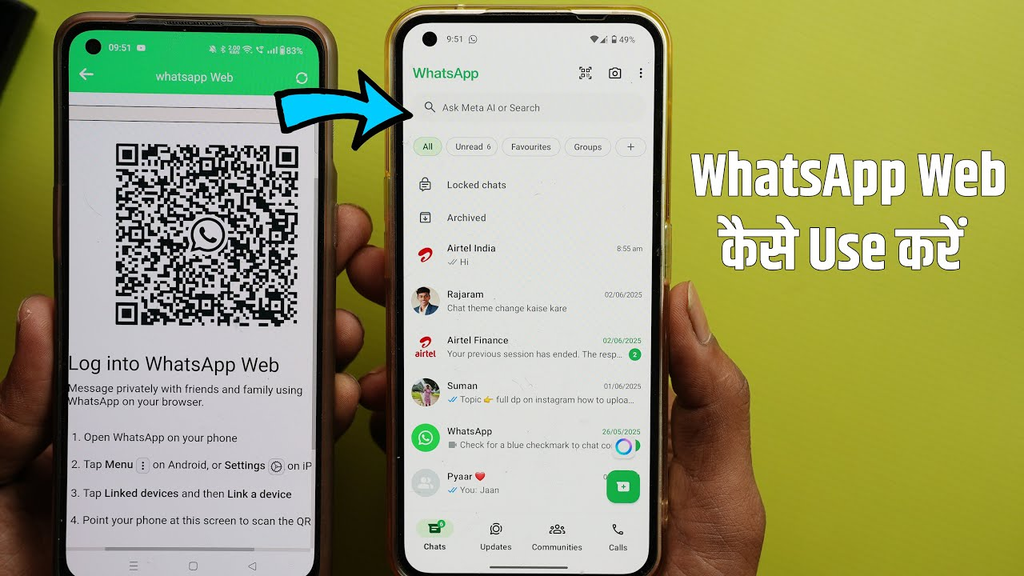
Step 4: Scan the QR Code
Now, return to the Dual Chat 2 WhatsApp Web Scanner application, where the QR code is displayed.
Use WhatsApp’s built-in QR scanner to scan the code shown by the application. Once the code is scanned successfully, follow any additional instructions displayed on your screen.
If the linking process is successful, the linked WhatsApp session may become available through the supported interface.
Please remember that you should only link your own WhatsApp account or an account for which you have permission. Never scan an unknown QR code or share your account access with an untrusted person.
How to Use the Direct Chat Feature
Now, let’s discuss another feature available in the application: Direct Chat.
Return to the application’s home screen and tap the Direct Chat option. After opening it, you will see a place to enter a phone number and a field where you can type your message.
First, enter the phone number of the person you want to contact, including the appropriate country code. Then, type your message in the message box.
After entering the required details, you can use the available option to proceed with your message. Depending on how the feature works, it may open a chat or redirect you to another interface.
This feature may be useful when you want to start a chat without manually saving a phone number in your contacts. However, its functionality can depend on the application version and the supported WhatsApp features.
You may also find an option to copy a link. If available, you can use this option to copy the relevant link for later use.
How to Use the Text Repeater Feature
The application also includes a Text Repeater feature.
To use it, open the Text Repeater option and type the text you want to repeat. The application may allow you to generate multiple copies of the same message, depending on its available settings.
For example, if you want to repeat a particular word or sentence several times, you can enter the text and select the required repetition amount if that option is available.
After generating the repeated text, you can copy it and use it wherever appropriate.
This feature can save time when you need to prepare repeated text. However, you should avoid sending excessive or unwanted messages to other people, as this may be considered spam.
Is the Dual Chat 2 WhatsApp Web Scanner App Real or Fake?
Friends, this is an important question. Before using any third-party application, you should check whether it is trustworthy and whether its advertised features actually work.
To check the application, you can visit the Google Play Store and search for its name. Open the application’s listing and examine its available information.
Pay attention to user ratings, written reviews, the developer’s details, the date of the latest update, and the permissions requested by the application.
You should also read negative reviews to understand whether users have reported problems with scanning QR codes, linking accounts, or using the application’s other features.
However, remember that an application being available on the Google Play Store does not automatically mean that every advertised feature is genuine or reliable. Likewise, a high rating alone does not guarantee that an application is safe.
Before linking your WhatsApp account, check the application’s privacy policy and consider whether it is necessary to grant the requested permissions. Avoid entering sensitive information into an untrusted third-party application.
Important Things to Remember
The Dual Chat 2 WhatsApp Web Scanner application provides features such as WhatsApp Web access, Direct Chat, and Text Repeater. However, the actual availability and performance of these features may vary.
WhatsApp’s official Linked Devices feature is the standard method for linking your account to supported devices. A third-party scanner cannot guarantee access to a second account simply because it displays a QR code.
Always use the official WhatsApp application for account linking and security verification. Never scan a QR code unless you understand which device or session you are authorizing.
Conclusion
So, friends, in this video, we discussed the Dual Chat 2 WhatsApp Web Scanner application and its main features. We explained how to open the application, access the WhatsApp Web option, scan a QR code, use Direct Chat, and try the Text Repeater feature.
We also discussed how you can check the application’s ratings, reviews, developer information, and permissions before deciding whether to use it.
I hope this guide has helped you understand the application’s features and how they are supposed to work.
If you found this video helpful, please like the video and subscribe to the channel for more reviews and tutorials. Thank you for watching, friends. See you in the next video!